Wednesday, September 28, 2016

Class 6 09/27/2016

Hi guys!

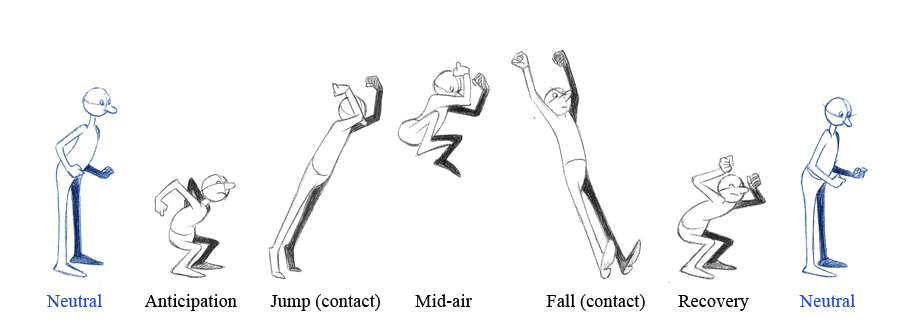
Please continue to work on your running and jumping animations.

HanJun,

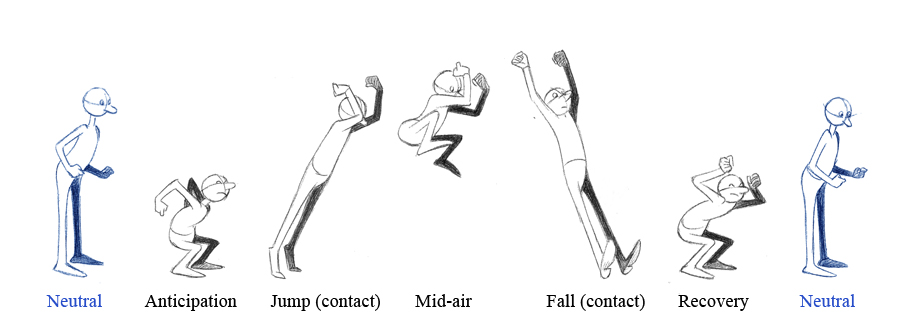
-Please be sure to add more key poses to your animation.  I would like to see the hands and feet really connect to the surfaces they are pushing off of.  Watch as many references as you can and observe how these parkour moves work.
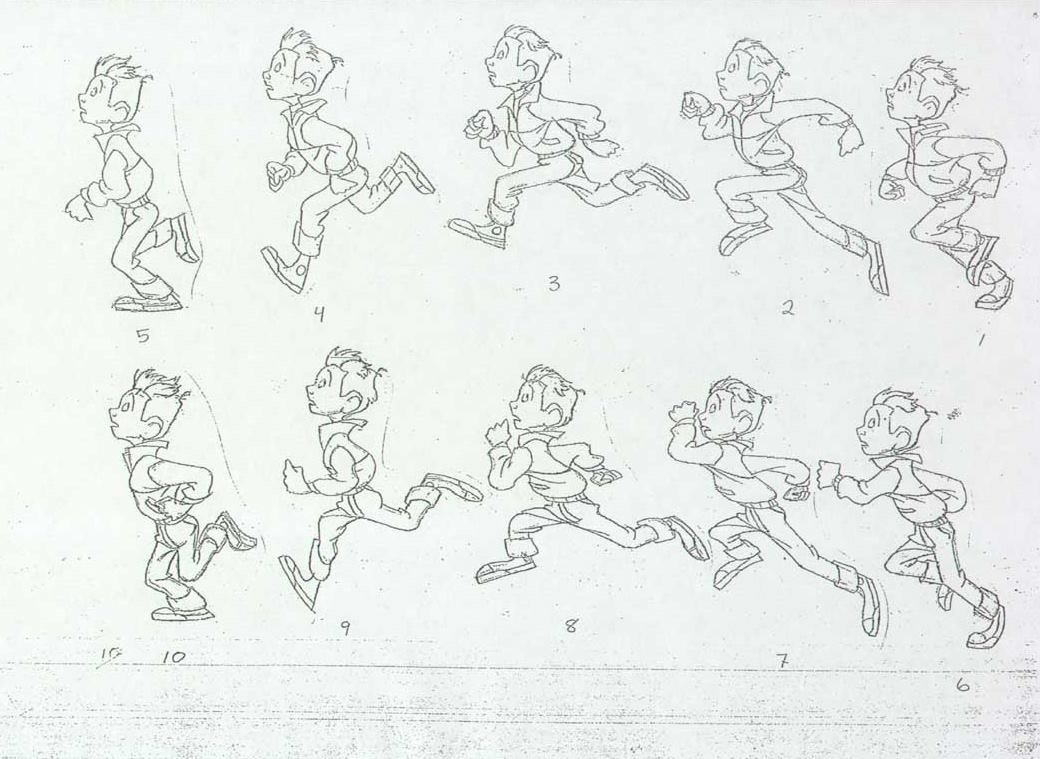
-Work on speeding up your run.
-Simplify your camera.  I think you may only need two shots.

EunYoung,

-Work on ramping up your run cycle, and fixing the body as your character is jumping.  Check both realistic and cartoony references and see how the spine moves.
-Simplify your camera move, and try to keep the eye direction of your character consistent

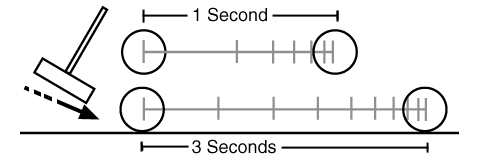
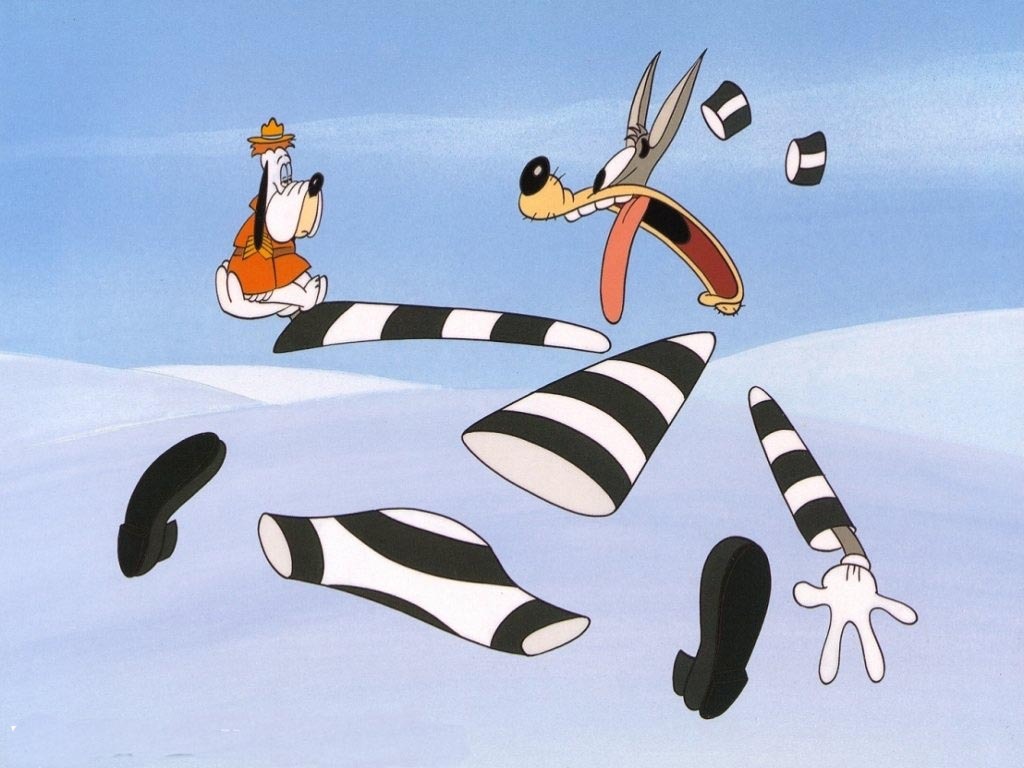
For both of you, remember to watch the timing of your animation.  You both seem to be doing well with mechanics, but could work on your timing.  Shift the keyframes closer together if you want to make something seem faster.  

You could almost have your characters running this fast before jumping.
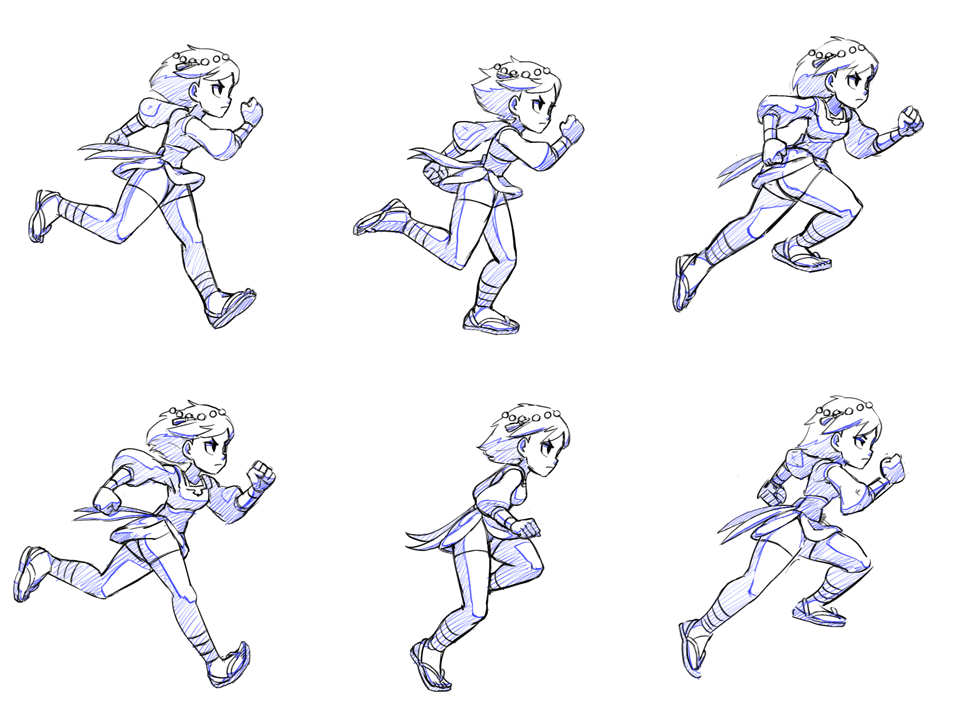


Space them apart if you want to slow anything down.  Please film yourself, or download a clip of someone running or jumping.  Pay attention to the timing, or even the frame count between steps or jumps.  When you review your animations, compare them to your references and ask yourself "does this feel right?"  And please feel free to show me, or each other for feedback.  Sometimes it is hard to see what you need fix on your own work.  You will need someone else's eye to find the problems.

In the meantime, here is more inspiration and reference:


Homework
Finish up your run and jump animations.  I think for this assignment, you can turn in a persp, side, and Rendercam view.

Thursday, September 22, 2016

Class 5 09/20/2016

Last class I showed you guys how I would do a run or jump.  I showed you straight ahead animation, and quickly demonstrated pose to pose at the end of the class.

Here is a great video about it:

Here are the run jump examples I showed in class:
http://framexframe.tumblr.com/post/131747642902/studio-ghiblis-when-marnie-was-there
http://framexframe.tumblr.com/post/128186142038/glen-keanes-duet
http://framexframe.tumblr.com/post/118282198064/disneys-the-great-mouse-detective

Other drawings:


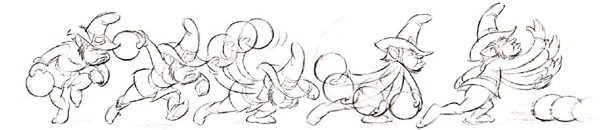
Drawing examples from a pixar animator, for planning his animation:
https://www.flickr.com/photos/victor_navone/collections/72157630141875812/


HOMEWORK
Revise your run cycles and bring them into class

Block out your animations for running and jumping.  Please bring in quicktimes showing the side view and any kind of persp view you would like to set up.

If you are doing pose to pose animation, please keep in mind to make as many keys and poses as you need to sell the idea.  There is no limit.  The more you lay down, the easier it might be to spline the animation.

Wednesday, September 14, 2016

Class 4 09/13/2016

Run Cycles

Hi guys.  Here are some inspirations and references for your run cycles.


This video shows something that is interesting to note.  This girl is shown landing on the balls of her feet instead of her heel, which is what I showed you in class.  That's ok!  That's very realistic, since jogging this way is better for your knees.


I have tried to find running tutorials, but the ones I see are not very good.  I think by now you should be comfortable keyframing in maya., and you know what kind of poses you want to hit.

Topics covered in class to remember
-A-tools tweening
-Holding "I" and middle mouse in the graph editor to drop key frames on the curves.
-Retiming the run cycle by pushing and pulling keys.

HOMEWORK
Based on critiques in class, please revise your walk cycles.  Polish them up!  Perhaps you can use it on an animation reel!

Next do a run cycle!  Please playblast a quicktime with H.264 compression, at HD 720.  Please email them before class begins.  We will critique them at the beginning of class.

Wednesday, September 7, 2016

Class 3 09/07/2016

Hello everyone.  In this blog post, I have a refresher on how some of aTools works.  Also I have provided some references for walk cycles.

I am still working on a default pose script for Morpheus, so stay tuned.

Atools for maya at home (click to save)

Tutorial Video on aTools:

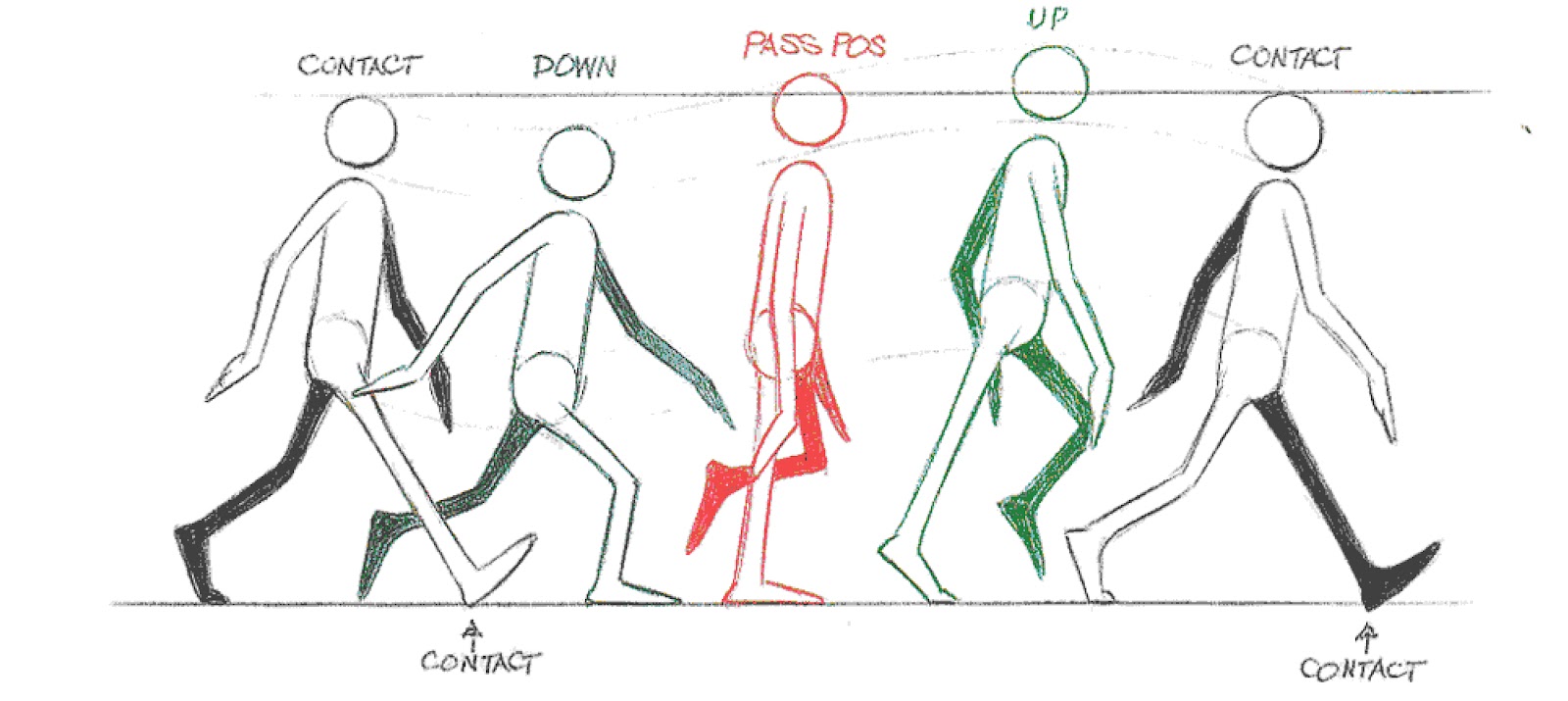
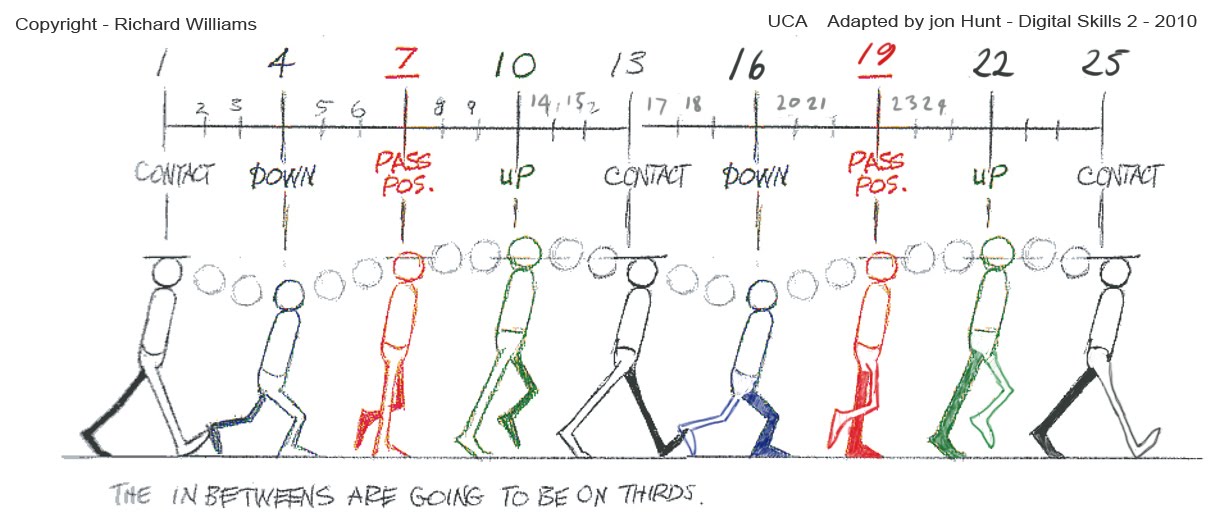
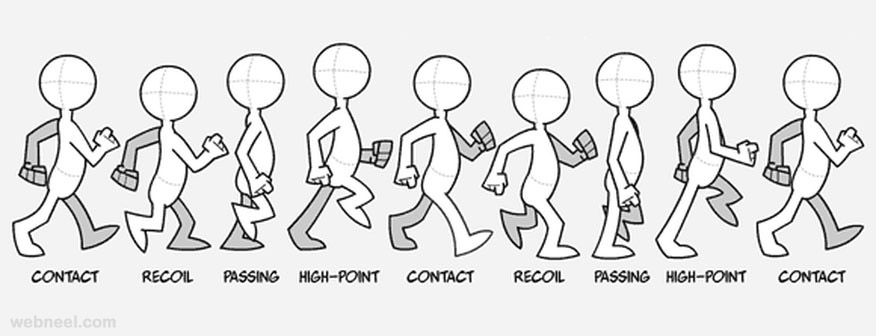
Walk cycle images:

This man here is an inspiration.  This person was not an animator before, but he decided he wanted to try it.  Everyday for 100 days, he tried to animate a walk cycle.  You can see him getting better and better with each try.


Other Walk Cycles:


Other Tutorials:


Homework!

Please put together a first pass of your walk cycles.  Don't forget to use aTools to save time. Use the images provided if you need references for which poses you would like to have in your walk cycle.  Please work on your poses and timing until you feel like they look like good walk cycles.

If you film yourself walking as reference, I will give extra credit.

For next class I would like to see a quicktime of your walk cycles and your references if you have them.  Please playblast them and email them to me before class begins.  We will then take those and I will show you how to take them a step further and refine them.

If you need help or advice, please send me an email!


Wednesday, August 31, 2016

Class 2 08/30/2016

Covered in class:
-creating maya project
-where to save rig
-reference rig
-Setting up a scene
-explaining manipulators
-rotating and translating on object, world, and gimbal. I forgot to cover scale last night,
but you actually won't need to worry about changing the settings on that.
-IK FK
-Camera
-Frame your camera to make the best compostion and show off your posing.
-setting keys for poses
-selecting all
-Morpheus should have a select all script, and a reset script. I will find this and update
you later.
-playblasting
  -Playblast the format as image with jpg encoding.
-Playblast with render settings, scale 1. Your render settings should be set to 720 x 540.
-Make sure to hide curves and show only polygons in viewport.
Inspiration:


Morpheus Notes:
Here are some videos and resources about Morpheus.  This is also the website it comes from, if you are looking for more information.

http://www.joshburton.com/projects/morpheus.asp

Morpheus can have his gender and appearance modified.  If you wish to explore that, please do.  I can show you more in detail during the next class.

However, please use the rig I emailed to you.

 In the video above, you can see FK on the left, and IK on the right.  This is the difference between FK and IK.  FK you need to rotate Shoulder, Elbow, and Wrist to position the arm.  IK you only need to translate the wrist control, and position the pole vector. 
To switch between FK and IK, find this control near the hand.  0 is FK and 1 means IK.
There are similar controls for the foot for switching FK/IK, but honestly, 95 percent of the time you will not animate the foot/leg with FK.  Best to keep it IK.

And just so you know, the spine has FK/IK controls as well.  Another way of telling the difference, is that in Morpheus, FK controls are only rotated, while most IK controls can be rotated AND translated.  Some more advanced and flexible rigs allows you to translate, rotate and scale FK or IK, but Morpheus will not.  Here is a video demonstrating the difference.

The control name usually indicate whether it is an FK or IK control.  If you don't know how to find the name of the control, I have shown you 3 places in maya that tell you, once you have it selected.


To reiterate, here is a Morpheus demo video to help you get more familiar with the rig.

Morpheus Rig 101 - "The Rig As Is" from Josh Burton on Vimeo.


HOMEWORK

Please pose out Morpheus to your drawings.  There should be 10 poses.  If you want to more please feel free to do so.

Wednesday, August 24, 2016

Class 1 08/24/2016

Hey guys! Welcome to the class blog. This entry covers what we talked about during the first class. I have the principles of animation here, and then below some resources on maya animating and the graph editor. This is here for you to review. The assignment is at the very bottom.

1) Principles of Animation
1. SQUASH AND STRETCH
This action gives the illusion of weight and volume to a character as it moves. Also squash and stretch is useful in animating dialogue and doing facial expressions. How extreme the use of squash and stretch is, depends on what is required in animating the scene. Usually it's broader in a short style of picture and subtler in a feature. It is used in all forms of character animation from a bouncing ball to the body weight of a person walking. This is the most important element you will be required to master and will be used often.


2. ANTICIPATION
This movement prepares the audience for a major action the character is about to perform, such as, starting to run, jump or change expression. A dancer does not just leap off the floor. A backwards motion occurs before the forward action is executed. The backward motion is the anticipation. A comic effect can be done by not using anticipation after a series of gags that used anticipation. Almost all real action has major or minor anticipation such as a pitcher's wind-up or a golfers' back swing. Feature animation is often less broad than short animation unless a scene requires it to develop a characters personality.


3. STAGING
A pose or action should clearly communicate to the audience the attitude, mood, reaction or idea of the character as it relates to the story and continuity of the story line. The effective use of long, medium, or close up shots, as well as camera angles also helps in telling the story. There is a limited amount of time in a film, so each sequence, scene and frame of film must relate to the overall story. Do not confuse the audience with too many actions at once. Use one action clearly stated to get the idea across, unless you are animating a scene that is to depict clutter and confusion. Staging directs the audience's attention to the story or idea being told. Care must be taken in background design so it isn't obscuring the animation or competing with it due to excess detail behind the animation. Background and animation should work together as a pictorial unit in a scene.


4. STRAIGHT AHEAD AND POSE TO POSE ANIMATION
Straight ahead animation starts at the first drawing and works drawing to drawing to the end of a scene. You can lose size, volume, and proportions with this method, but it does have spontaneity and freshness. Fast, wild action scenes are done this way. Pose to Pose is more planned out and charted with key drawings done at intervals throughout the scene. Size, volumes, and proportions are controlled better this way, as is the action. The lead animator will turn charting and keys over to his assistant. An assistant can be better used with this method so that the animator doesn't have to draw every drawing in a scene. An animator can do more scenes this way and concentrate on the planning of the animation. Many scenes use a bit of both methods of animation.


5. FOLLOW THROUGH AND OVERLAPPING ACTION
When the main body of the character stops all other parts continue to catch up to the main mass of the character, such as arms, long hair, clothing, coat tails or a dress, floppy ears or a long tail (these follow the path of action). Nothing stops all at once. This is follow through. Overlapping action is when the character changes direction while his clothes or hair continues forward. The character is going in a new direction, to be followed, a number of frames later, by his clothes in the new direction. "DRAG," in animation, for example, would be when Goofy starts to run, but his head, ears, upper body, and clothes do not keep up with his legs. In features, this type of action is done more subtly. Example: When Snow White starts to dance, her dress does not begin to move with her immediately but catches up a few frames later. Long hair and animal tail will also be handled in the same manner. Timing becomes critical to the effectiveness of drag and the overlapping action.


6. SLOW-OUT AND SLOW-IN
As action starts, we have more drawings near the starting pose, one or two in the middle, and more drawings near the next pose. Fewer drawings make the action faster and more drawings make the action slower. Slow-ins and slow-outs soften the action, making it more life-like. For a gag action, we may omit some slow-out or slow-ins for shock appeal or the surprise element. This will give more snap to the scene. 


7. ARCS
All actions, with few exceptions (such as the animation of a mechanical device), follow an arc or slightly circular path. This is especially true of the human figure and the action of animals. Arcs give animation a more natural action and better flow. Think of natural movements in the terms of a pendulum swinging. All arm movement, head turns and even eye movements are executed on an arcs.


8. SECONDARY ACTION
This action adds to and enriches the main action and adds more dimension to the character animation, supplementing and/or re-enforcing the main action. Example: A character is angrily walking toward another character. The walk is forceful, aggressive, and forward leaning. The leg action is just short of a stomping walk. The secondary action is a few strong gestures of the arms working with the walk. Also, the possibility of dialogue being delivered at the same time with tilts and turns of the head to accentuate the walk and dialogue, but not so much as to distract from the walk action. All of these actions should work together in support of one another. Think of the walk as the primary action and arm swings, head bounce and all other actions of the body as secondary or supporting action.


9. TIMING
Expertise in timing comes best with experience and personal experimentation, using the trial and error method in refining technique. The basics are: more drawings between poses slow and smooth the action. Fewer drawings make the action faster and crisper. A variety of slow and fast timing within a scene adds texture and interest to the movement. Most animation is done on twos (one drawing photographed on two frames of film) or on ones (one drawing photographed on each frame of film). Twos are used most of the time, and ones are used during camera moves such as trucks, pans and occasionally for subtle and quick dialogue animation. Also, there is timing in the acting of a character to establish mood, emotion, and reaction to another character or to a situation. Studying movement of actors and performers on stage and in films is useful when animating human or animal characters. This frame by frame examination of film footage will aid you in understanding timing for animation. This is a great way to learn from the others.


10. EXAGGERATION
Exaggeration is not extreme distortion of a drawing or extremely broad, violent action all the time. Its like a caricature of facial features, expressions, poses, attitudes and actions. Action traced from live action film can be accurate, but stiff and mechanical. In feature animation, a character must move more broadly to look natural. The same is true of facial expressions, but the action should not be as broad as in a short cartoon style. Exaggeration in a walk or an eye movement or even a head turn will give your film more appeal. Use good taste and common sense to keep from becoming too theatrical and excessively animated.


11. SOLID DRAWING
The basic principles of drawing form, weight, volume solidity and the illusion of three dimension apply to animation as it does to academic drawing. The way you draw cartoons, you draw in the classical sense, using pencil sketches and drawings for reproduction of life. You transform these into color and movement giving the characters the illusion of three-and four-dimensional life. Three dimensional is movement in space. The fourth dimension is movement in time.


12. APPEAL
A live performer has charisma. An animated character has appeal. Appealing animation does not mean just being cute and cuddly. All characters have to have appeal whether they are heroic, villainous, comic or cute. Appeal, as you will use it, includes an easy to read design, clear drawing, and personality development that will capture and involve the audience's interest. Early cartoons were basically a series of gags strung together on a main theme. Over the years, the artists have learned that to produce a feature there was a need for story continuity, character development and a higher quality of artwork throughout the entire production. Like all forms of story telling, the feature has to appeal to the mind as well as to the eye.


(This can be the major theme of this class)


2) Maya Animation

Maya 2016 Hot Keys:

Animation Operations
s
Animate > Set Key
i
Insert Keys Tool (for Graph Editor) (press and release)
Shift
S
With left mouse button for Keyframe marking menu
Shift
S
With middle mouse button for Tangent marking menu
Shift
E
Set key for Rotate
Shift
R
Set key for Scale
Shift
W
Set key for Translate
Alt
j
Toggle Multicolor Feedback
Playback Control
Alt
.
Move forward one frame in time
Alt
,
Move backward one frame in time
.
Go to Next key
,
Go to Previous key
Alt
v
Turn Playback on or off
Alt+Shift
V
Go to Min Frame
k
With middle mouse button for virtual Time Slider mode (press and hold and scrub timeline)


Maya Graph Editor Reference

Youtube Tutorials


Please please I urge you to watch these videos when you can.  I realize they are long, but if you can sit through these, they will benefit you greatly for this class.  I will be presenting a lot of information over this semester, so watching will help you stay on track.


Youtube Tutorial Playlists

Maya for Beginners : Animation Mechanics and tips In Maya


Maya for Beginners: Principles of Animation


ASSIGNMENT!!
-Draw 10 poses from the life drawing videos
“Every artist has thousands of bad drawings in them and the only way to get rid of them is to draw them out.”

LIFE DRAWING VIDEOS (NUDE)
LIFE DRAWING VIDEOS (NON-NUDE)


-Read “Time to Draw” in The Animators Survival Kit.  pg. 23